Human Interaction - UI
Introduction
Orchestra is very useful for creating technical processes. Until now it was not possible to interact with humans during a process, although this would extend the application area of Orchestra in many directions. If it is necessary to let a human decide what to do next or if a task needs to be done by a person so that the process can continue, Orchestra could not be used to handle the whole process. With the work list handler this is now possible.
The work list handler has several users and groups of users. These are necessary to define who can perform a task. Furthermore, each task (called work list item) corresponds to a work list type. This type defines the basic structure of the task: how it can be used and how it is activated.
Activation means how the item is displayed to the user, currently there are three possibilities:
-
A simple form type, which means that the item is a simple dialog with a caption, a text, input fields and buttons.
-
A resource form type that displays the content of a HTML resource
-
An external website that displays the website that corresponds to the defined URL.
For each type there may exist input parameters that specify the correct display of the item and output parameters that are necessary for the process after the item is completed. An item that corresponds to such a type is displayed in the configured way, but has some more information that can vary for every item. The information that corresponds to the type itself is always the same for all items of this type. The information that the item holds is apart from its type the user or group of users that should work on the task, a priority, a name and values for all the input parameters that the type defines.
If the process now comes to the point where it needs some information from a human, it can create a work list item and wait for the humans to complete it. After completion, the process knows the values of the output parameters it needs and can continue, so the process creates the item and waits for completion. If an error occurs or the human cancels the item, an error signal is sent to the process. Here it becomes more clear why the work list types are necessary. The process defines the type with the parameters it needs and the parameters it can provide and how the task should be displayed for the user. In the running process, the concrete values of the parameters are known and depending on that, the configured user (that can depend on the process state) gets a new item to work on.
This is the standard mechanism for work list items. Apart from that, it is also possible to use a work list type to start an Orchestra process. Such types do not have output parameters, the parameters that the user enters before he clicks on start are the input parameters for the process. In this case, the user selects a type that can be started (can be configured) in his UI and enters the necessary parameters. After sending the start request, an Orchestra process is started and the parameters are passed to it.
Apart from the basic mechanism, there are some more possibilities for configuration: for each credential the administrator can define which types he is allowed to handle. The administrator can also define escalation rules: if an item is not completed for the configured time, it is either aborted, delegated to a different credential or a notification e-mail is sent.
Using the Work List UI
If the administrator created an account, the user can log into the application with user name and password. The standard URL is http://localhost:8090/humaninteraction/ui/. After successful login a menu on top the top of your screen is displayed:
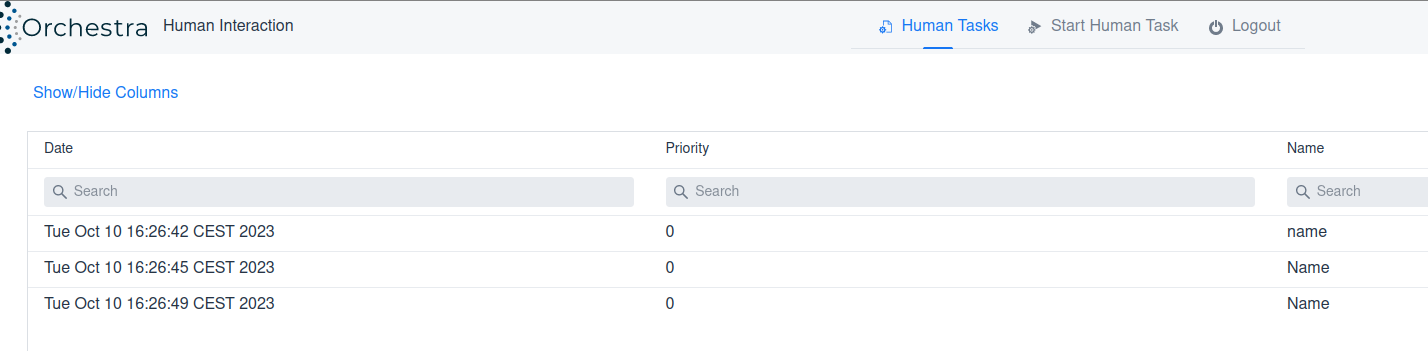
If the menu contains too many items and extends beyond the visible screen, a scrollbar will appear. Additionally, if the user is looking for a specific group, name, or item within a large menu, they can use the search field to quickly find it.
Dealing with work list items
The menu shows all items that the user can currently finish. Private items are the items that only this user can handle. If an item is not assigned to a user but to a group, the items can be handled by all members of the group. The column User/Group shows this.
The menu displays all items that the user can currently complete. 'Private' items are those that can only be handled by the current user. If an item is assigned to a group instead of an individual user, it can be managed by any member of that group. This information is shown in the "User/Group" column.
Clicking on an item opens the specialized UI for that item type, where, if applicable, the user can enter information and complete the item with several result codes depending on the button clicked. Right-clicking an item opens the context menu:
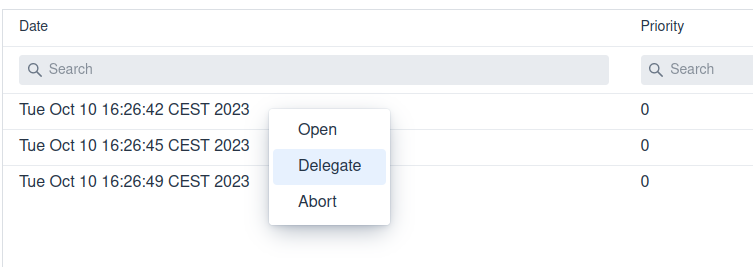
If the user wants to assign a different credential to the item, they can select "Delegate." This allows private items to be assigned to a different user or a group, and group items can be reassigned to other groups, users, or even back to the user themselves (if they wish to indicate responsibility for the item). Selecting "Abort" will cancel the human task.
Starting Items and Processes
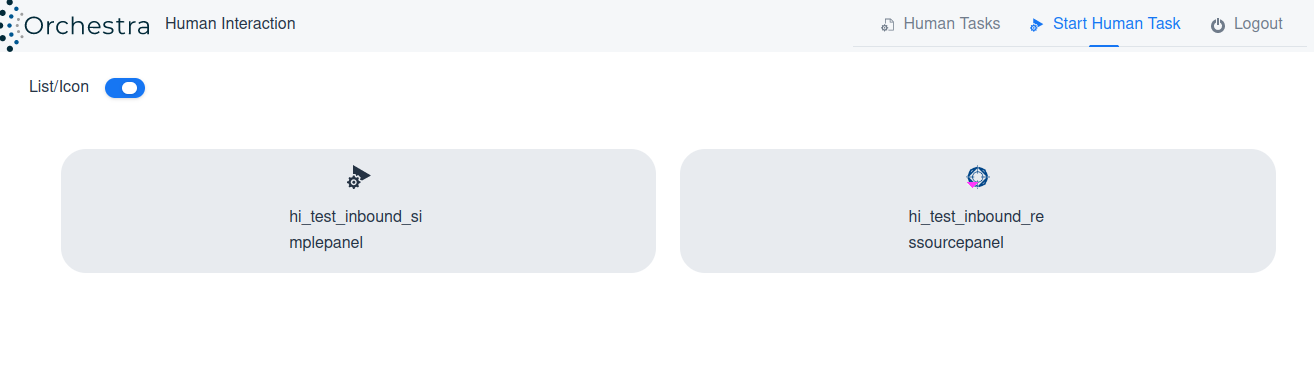
Selecting the "Start Human Task" menu tab will open a page as the following image:

The pictures in the button can be uploaded via Orchestra designer. Look at Human Interaction in the web-designer documentation for more information.
Clicking on a row or an icon opens the 'start' UI for the work type list. The user can enter some information (if applicable), and then click on the 'start' button. The corresponding Orchestra process will start with the provided information. You can also choose between 'icon view' or 'list view', and the view will change accordingly.